
If you’re an aspiring designer you’ve heard that making “the complicated simple” is one of the main goals of design — and something that we often fail about doing in the beginning.
One of these ways of simplifying our work is through the little software called Canva. An incredible tool you probably use to get a design simplified in seconds, right?
To be brutally honest, this tool is the on the far end from being “simple.”
Now before you make any assumptions, here’s what I mean: Canva lacks the features that makes Adobe so powerful.
As a fellow Graphic Designer, I know the feeling when you have legit 5 minutes to design a small graphic yet Adobe Photoshop takes about 2 of those to actually load.
But even so, Canva in the long-run doesn’t make “the complicated simple.”
It can take more time out of your day than not, reasons which I’ll explain.
Hopefully you’ll see why I’m not buying into this free software that may appear simple to the eye.
Canva is Oversimplified
As a software whose website claims they, “…make it easy to create professional designs and to share or print them.” They certainly don’t make it “easy.”
And here’s a small list on why.
Artboard
When you click the little + at the top right, it asks you for a dimension right?
Oh yeah, I love it! Super simple.
When I add my dimensions, I see the workspace. Which I can then drag elements to design what I want.
Suddenly I realize, “I need this in landscape, not portrait view!”
As I go to click on the button I stop myself, “this isn’t Adobe, this is Canva!”
That’s right, Canva doesn’t have a way to change dimensions. Once you’re in a design — you’re stuck.
Or if you’re about to comment that “yes, I can!”
Remember: the Pro plan costs money, even though you can technically resize with the pro — I might as well get Adobe if I want to have more functionality, in turn defeating the point of using something free.
And that brings us into point 2.
Lack of control
Let’s say I have a social media graphic I’m creating. In Canva I can choose from templates & use theirs, right?
Ok, so then I want to change one small line on an asset.
Nope…
I guess these elements are static? Oh wait, there is no terminology stating that in Canva!
Whereas in Adobe Photoshop, I can simply click a button that says “static or un-static” giving me full control to change an asset once I’ve created it.
Canva may have its infinite collection of assets easily retrieved from its left panel, but if I can’t edit them to suit my own… what’s the point?
It’s only a sacrifice of quality if me, as a Graphic Designer, cannot edit a “simple” asset.
I could go on and on about my pet peeves, but since I’m sticking with what I see as fact, I have to move on.
Adobe’s Accessibility is over 1000
After designing a graphic in Canva, adding the text, and taking the seemingly 2 seconds to create it all.
You have to export it.
Scratch that, let’s talk about Adobe’s way of exporting first.
On Adobe Photoshop (similar to Illustrator as well) you run down the long menu on File, click Export, and then a bar comes across your screen.
Not very simple selections…
Sure maybe not, but look at all the options you can choose!
You have the option to Quick Export if you’re in a rush, or go through the Export As process if you need something precise.
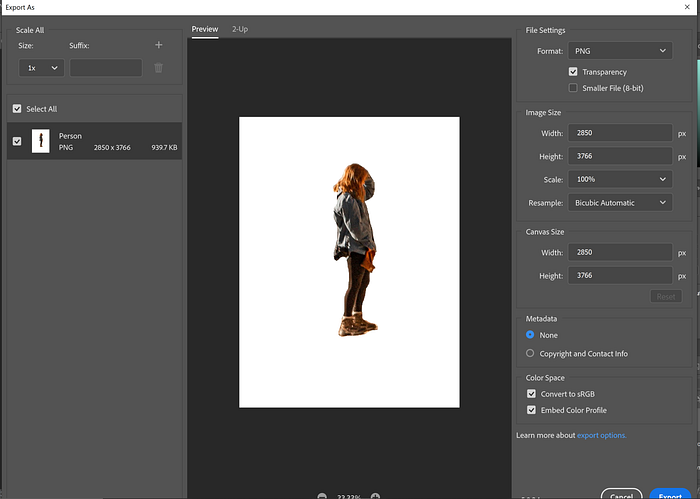
Image by author sharing the Export As options.
As far as I know (Canva won’t say it), Canva only has the Quick Export selection — because I never saw all of these export options in their panel!
Next, the most important thing.
When it comes to knowing what you’re using a design for, you need to know what file option to export it in, right?
Vector or Raster.
Without these options, you can sufficiently diminish the quality whether it’s for physical or digital use.
As for Canva, from my research they work with Raster images, and anything Vector scaleable can be used with their pro plan.
Whereas Adobe Photoshop has access to several options!
Again, why get Canva Pro when I can have much more functionality in the most important part of designing (exporting), with Adobe Photoshop?
Canva vs Adobe in their Libraries
Now here’s something I suggest you try out.
Is Adobe’s collection of assets better or Canva?
They both:
- Give creators a chance to share & earn from their work.
- Have a variety of styles to choose from.
But that’s all I can go on for, here’s what Canva has:
- Choice of audio, video, animations, and photos.
- Ability to choose colors based on brand kit.
- Download with transparent background.
- A few more options…
While Adobe Photoshop & their products:
- Already comes with transparent background & the ability to take out a background in 1 second.
And has the same options as Canva in addition to:
- Brushes (oooh).
- Layer styles.
- Advanced gradients (ex. freeform mesh).
- And many more!
All found from either inside their software or in their libraries.
You’re likely to get more from browsing Adobe’s selections rather than Canva’s “simple” assortment of assets.
Also an important thing to note about Adobe products, is you can access them anytime & anywhere. Because you can access them online or on your hard drive.
Whereas Canva still lags if you’re disconnected from the internet for a literal second (coming from personal experience.)
You do you
Even if you’re still stuck on using Canva, that’s ok.
In the end, you need to pick the software that helps you out the most.
My only point in comparing Canva & Adobe products is that with more functionality comes more simplicity in the long-run.
But if you happen to need a quick graphic & aren’t a graphic designer, then Canva would probably be more simple in the long-run.
But if you’re a graphic designer and you can’t purchase the Adobe Suite. Then please try one of the free alternative software’s out there like Photopea or an Illustrator alternative like Krita.
Because Canva is not gonna help you in your work down the road.
Takeaway
As someone who started using Canva in school long before I even considered being a designer: it can be a life saver.
I mean it… if you don’t have money & can’t put time into learning graphic design then go ahead & use it!
Canva may simplify your work now, but from these points mentioned it cannot replace the full functionality that Adobe gives & in turn the time that Adobe saves.
Even though Adobe products may be expensive and complicated, once you use and understand them to their full capacity — there’s no limit. This functionality is more than what can be said about Canva, who doesn’t even let you change the size of an artboard!
So let’s keep working, keep creating, and keep “making the complicated simple.”
And always, stay inspired ⚡